
AI Moodboard for Home Design: Turn Inspiration Into a Real Room
A mood board has always been the bridge between a vague feeling and a finished room, and home designs ai now build that bridge in seconds instead of an afternoon of clipping magazines. Designers have relied on the classic mood board format for decades; an AI moodboard for home design takes the same idea, adds a few inspiration photos, and pulls out a cohesive color palette, matched materials and finishes, and a style direction you can actually shop and build from.

Instead of a static Pinterest wall, an AI mood board becomes a decision-making tool — it can even be converted into a photoreal 3D render of your own room. This guide covers what these tools do, how they work, the best options, and how to prompt them well.
What an AI Moodboard Actually Is
An AI mood board generator does the same job a designer’s corkboard always did, but it reads the inputs instead of just displaying them, and it hands back something you can measure against.
From inspiration wall to decision tool
A classic mood board — the cork-and-magazine-clippings version, or its digital equivalent on Pinterest — is static inspiration. It shows a feeling but doesn’t tell you what paint code, fabric, or furniture piece produces it. An AI moodboard generator analyzes the same kind of source material and returns structured output: a color palette, a materials list, and often a furniture layout, all extracted automatically from what you upload. Most tools accept up to six kinds of input:
- Existing room photos
- Furniture pieces you already own or like
- Color swatches
- Fabric or upholstery samples
- Material and texture references (wood, stone, metal)
- Reference images pulled from magazines or social media
Mood Board AI, one of the category’s better-known tools, reports 120,000+ boards generated by users and a 4.9/5 creator rating — a sign of how mainstream this workflow has become for people who aren’t professional designers.
Where it fits in the home-design process
An AI moodboard is step one of a longer home-design pipeline, not the final product: concept comes first, then palette, then materials, then furniture layout, then a 3D render, then a shopping list. The same workflow applies whether the room is a living room, bedroom, kitchen, bathroom, home office, or nursery — only the furniture categories and material priorities change.
How AI Builds a Moodboard, Step by Step
The mechanics behind an AI mood board generator are consistent across most platforms, even though the interface and styling options differ.
Step 1 — Upload inputs and pick a style
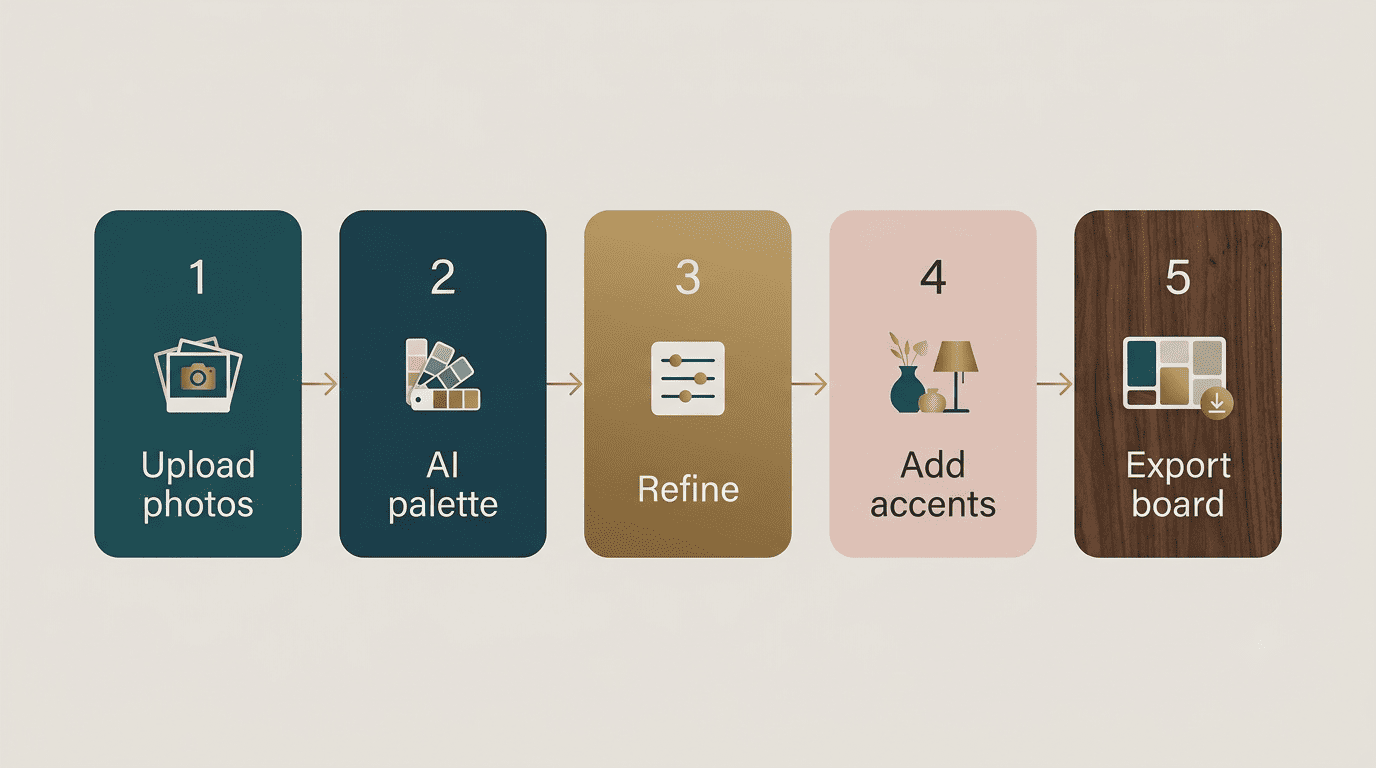
Here is the typical five-step flow most AI mood board generator and design assistant tools follow:
- Enter a text prompt or upload reference images.
- The AI generates an initial palette plus core design elements (furniture, materials, layout hints).
- Refine the result — swap a fabric, shift a tone, change a furniture piece.
- Add finishing accents (art, greenery, lighting).
- Export the final board, usually as a high-resolution image.
Dehome.ai, for example, offers eight curated interior styles to start from: Modern, Scandinavian, Industrial, Minimalist, Bohemian, Traditional, Contemporary, and Mid-Century Modern.
Step 2 — Palette extraction and material matching
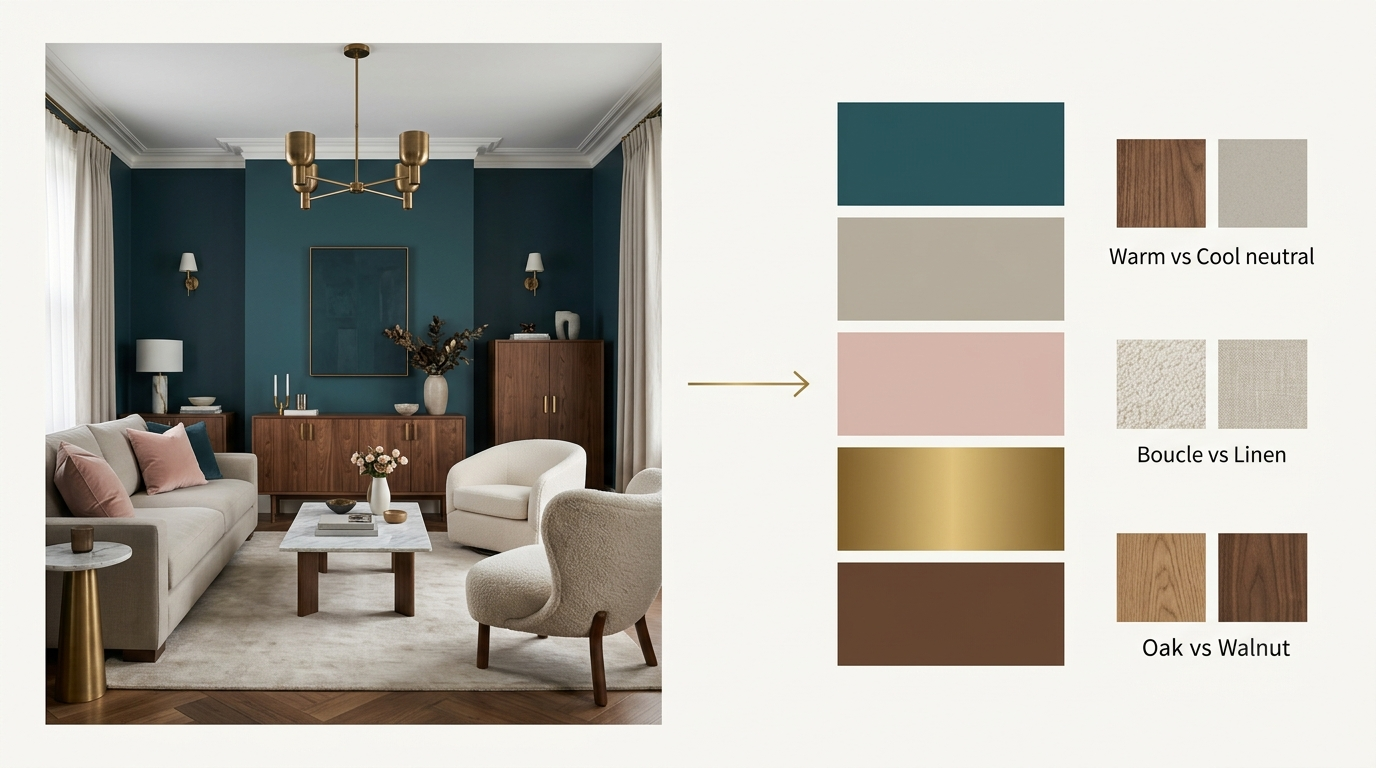
This is where an AI mood board generator earns the name: it auto-extracts a color palette from your reference images and matches materials and textures across fabric, wood, metal, and finishes. In practice, this shows up as specific paired choices rather than vague suggestions:
- Warm neutral vs cool neutral
- Boucle vs linen for upholstery
- Limewash vs plaster for wall finishes
- Warm oak vs walnut for wood tones
The underlying logic follows standard color theory, pairing dominant, secondary, and accent tones the way a trained eye would, rather than pulling random colors that happen to appear in a photo. That distinction — a harmonious scheme versus a random collage of colors — is the real difference between a useful AI moodboard and a pretty but unusable one.
Step 3 — Furniture, layout and export
Once the palette and materials are set, the AI recommends furniture and decor to fill remaining gaps in the room concept, then outputs a high-resolution board; some tools also generate a shopping list alongside it. The better tools stay scale-aware — they account for architecture, room proportions, and natural light rather than dropping in furniture at an arbitrary size. Concrete examples show up in the output, such as a 9×12 rug sized for a specific floor plan or a six-piece gallery grid sized for a particular wall.
From Moodboard to a Photoreal 3D Room
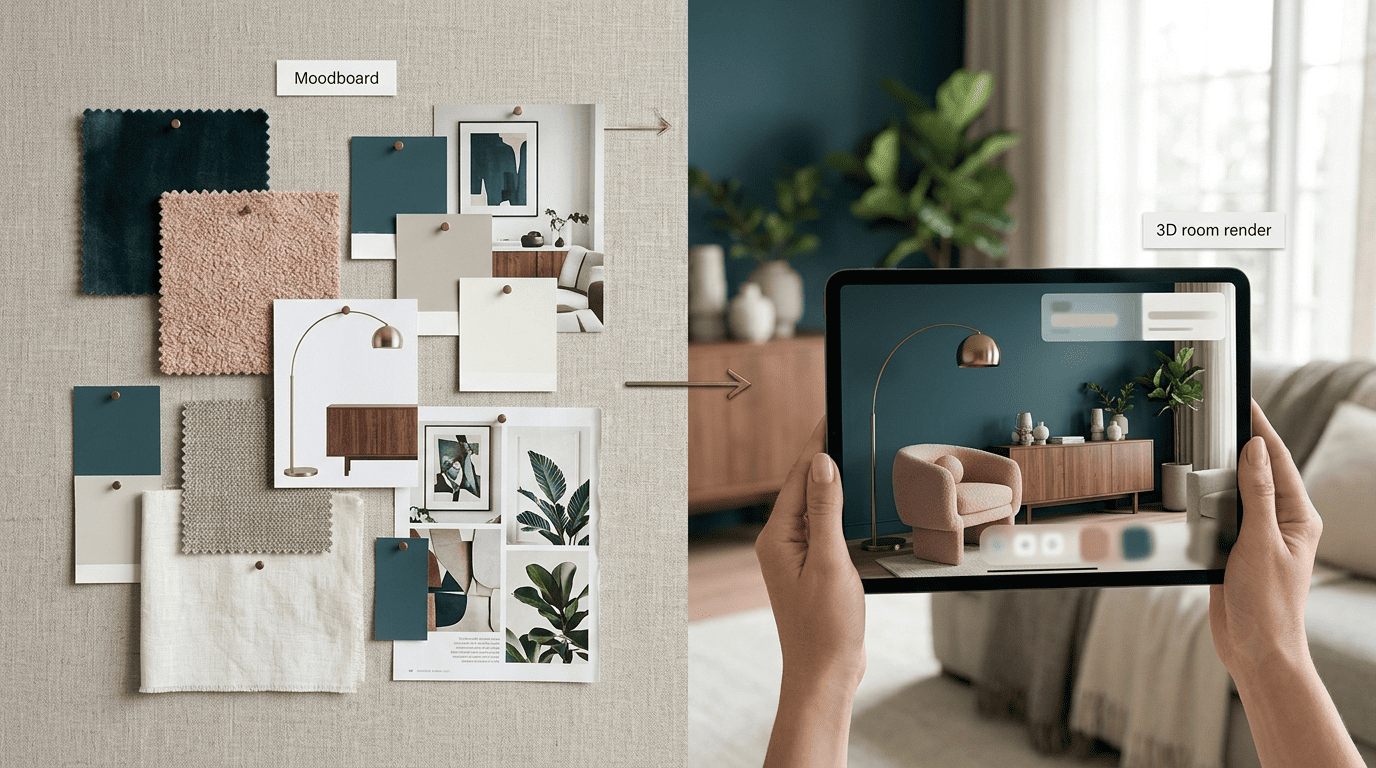
A finished moodboard is still a flat collage of swatches and reference photos — the real payoff comes once it gets applied to the room you actually live in. That’s the step that separates inspiration from a design you can act on, and it’s grounded in a much older idea about what belongs in a home in the first place.
Have nothing in your houses that you do not know to be useful, or believe to be beautiful.
William Morris
That 19th-century design principle still holds, even when the process that gets you there runs on a neural network instead of a workshop.
Uploading the board and prompting a render
The next wave of tools goes beyond a static board: upload your moodboard (JPG or PNG) plus a photo of your actual room to a tool like ChatGPT or a dedicated 3D rendering engine, and ask for a rendering that applies the board to the space. Keep the first prompt broad — room type, overall style, and the general palette — then refine furniture placement, wall treatments, lighting, and specific paint colors in follow-up prompts (naming an exact shade like Benjamin Moore’s Tarrytown Green sharpens the result noticeably). For major changes, restart the conversation rather than layering edits on edits — iterating too far in one thread tends to distort the render.
Is AI rendering wasteful? A quick reality check
It’s a fair question to ask before generating a dozen variations of the same room. Research groups that track AI’s resource footprint — including the nonprofit Epoch AI, which publishes estimates on typical query energy use — put a typical AI text query at around 0.3 watt-hours, rising to a few watt-hours for prompts with very long inputs, well below the roughly 3 watt-hours per query that earlier, more pessimistic estimates assumed. Image and render-heavy requests tend to cost more compute than a short text answer, though independent per-render figures are harder to pin down. The exact number varies by source, by model, and by prompt length, so treat any single figure as a reported estimate rather than an exact measurement for any one tool, and use it as a reason to iterate with intention rather than to avoid AI rendering altogether.
Best AI Moodboard Tools for Home Design
Home design ai and its category peers split into three practical groups, and which one fits depends on whether you want a real-room render, a flexible general-purpose board, or a conversational prompt tool. Read more on AI home design for a broader look at how these categories connect to full room planning.
Purpose-built interior tools vs general design tools
Interior-specific AI (Dehome.ai, ReimagineHome.ai). These tools are built only for rooms. Dehome.ai runs on eight curated styles, palette extraction, and material matching, with a free tier of 10 daily credits at roughly six credits per finished board. ReimagineHome.ai leans further into realism — it takes a photo of your actual room and produces a photoreal makeover with palette toggles, rather than a generic inspiration board.
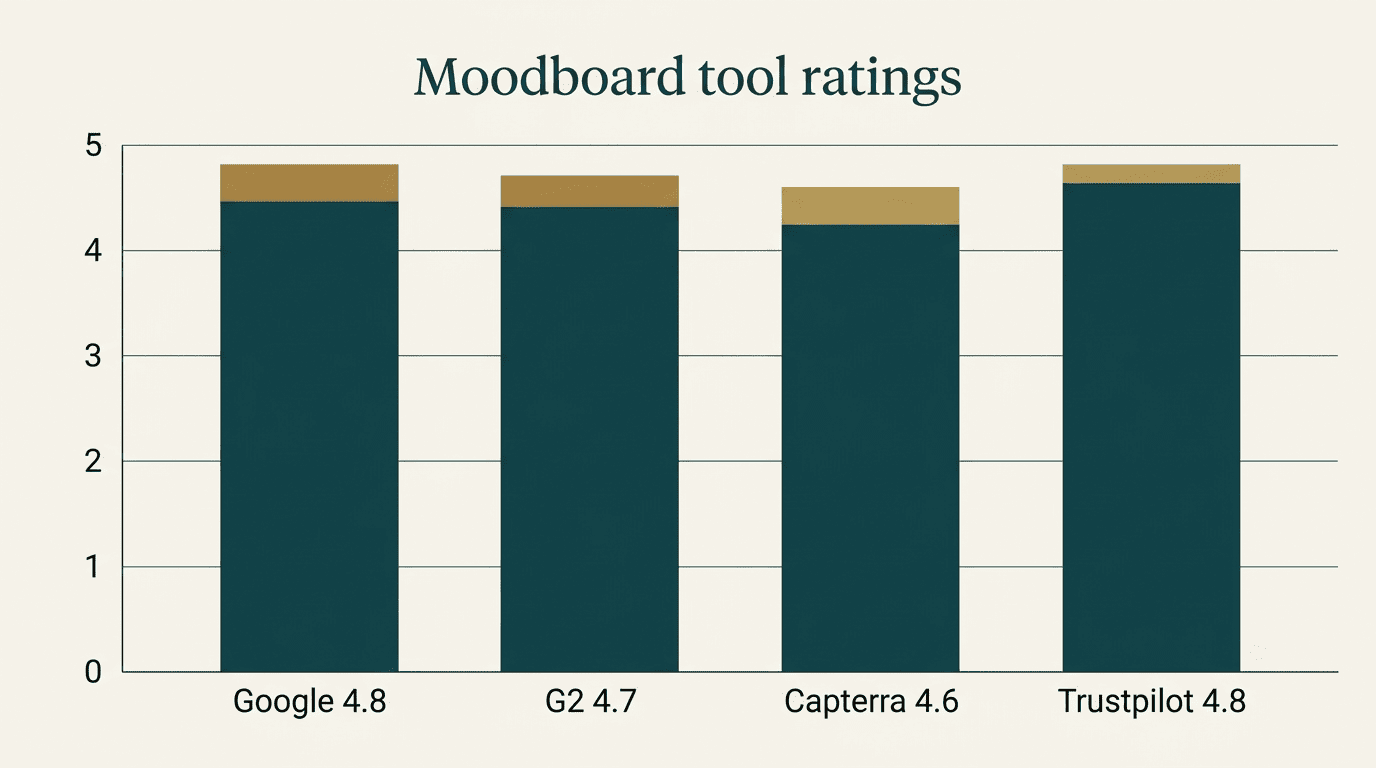
General moodboard makers (Venngage, Canva). Venngage’s AI moodboard generator is free, produces copyright-free output, and carries solid third-party ratings — around 4.8 on Google, 4.7 on G2, 4.6 on Capterra, and 4.8 on Trustpilot. Canva’s route is more manual and template-driven: strong if you want full creative control over layout, weaker if you want the AI to do the design thinking for you.
Flexible LLMs (ChatGPT). ChatGPT isn’t purpose-built for interiors, but it’s the most flexible option — prompt-driven boards, iterative refinement, and the ability to go straight from a moodboard to a room render in the same conversation.
Free vs paid — what the credits buy
Most tools in this space run on a freemium model. Free tiers typically include a daily credit allowance — Dehome’s 10 credits per day is a representative example — often paired with a watermark, lower export resolution, or a cap on how many boards can be saved. Paid tiers usually unlock higher resolution exports, access to more curated styles, and commercial-use rights. Copyright and commercial-use terms genuinely vary by tool, so it’s worth checking the license before using an exported board in client work or paid listings. A free tier is generally enough to cover:
- A single room’s concept exploration
- Two or three style variations to compare
- A palette and materials list to shop from
- A low-resolution export for personal reference
Paid credits become worthwhile once the project moves toward full-resolution exports, commercial use, or a real-room 3D render rather than a generic inspiration board.
| Tool | Category | Free tier | Best for |
|---|---|---|---|
| Dehome.ai | Interior-specific | 10 credits/day | Style exploration, palette + material matching |
| ReimagineHome.ai | Interior-specific | Limited free renders | Realistic makeover of your actual room |
| Venngage | General moodboard maker | Free, copyright-free | Fast, shareable boards without a design background |
| Canva | General design tool | Free with paid upgrades | Manual layout control, brand-consistent boards |
| ChatGPT | Flexible LLM | Free tier available | Prompt-driven boards and follow-up 3D renders |
Picking between these five tools mostly comes down to what stage of the project you’re actually at. Someone still deciding on a style direction gets more value from an interior-specific tool with curated presets, while someone who already knows the look they want and just needs a shareable board leans toward a general maker. The credit and pricing structure behind each option follows a similar shape across the category, even though the exact numbers differ tool to tool.
| Workflow stage | What free tiers usually cover | What paid tiers usually add |
|---|---|---|
| Concept + style pick | Full access | Full access |
| Palette + material matching | Full access | Higher-resolution swatches |
| Board export | Watermarked or capped resolution | High-resolution, watermark-free |
| Commercial / client use | Rarely included | Usually included |
| 3D room render | Limited or unavailable | Available on most paid plans |
How to Prompt an AI Moodboard That Actually Works
The output quality of any AI moodboard for home design depends heavily on how the prompt is structured, regardless of which tool is doing the generating.
A prompt recipe
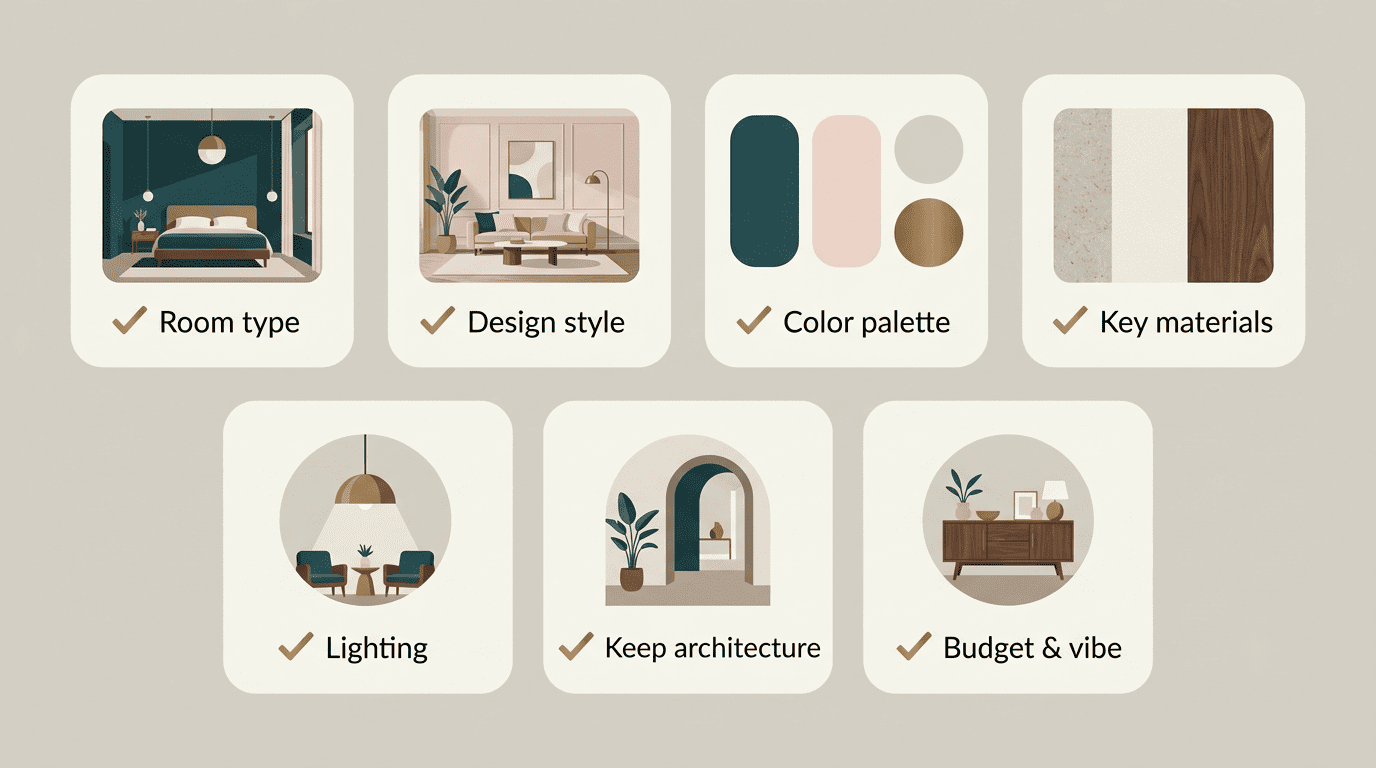
A reusable prompt template covers seven elements in order: room type, design style, color palette, key materials, lighting conditions, architecture to keep unchanged, and budget or overall vibe. A filled-in example: «A living room in Scandinavian style, warm neutral palette with sage green accents, white oak flooring and boucle upholstery, soft natural light from a south-facing window, keep the existing brick fireplace, mid-range budget.» Naming exact paint colors and material names — rather than vague terms like «nice wood» — consistently sharpens the AI’s output. The same recipe elements apply whether the request goes to a dedicated moodboard generator or a general tool like AI moodboard assistants built for room planning:
- Room type and function
- Design style (Scandinavian, Mid-Century Modern, Industrial, etc.)
- Color palette or mood
- Key materials and textures
- Lighting conditions
- Architecture or fixed elements to preserve
- Budget or general vibe